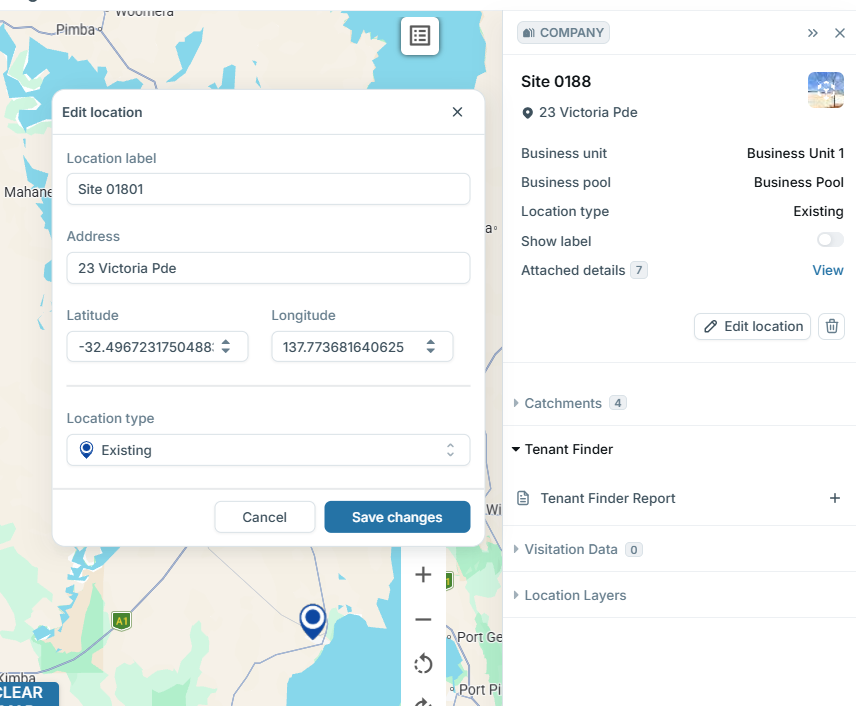
Search, Save and Edit Locations
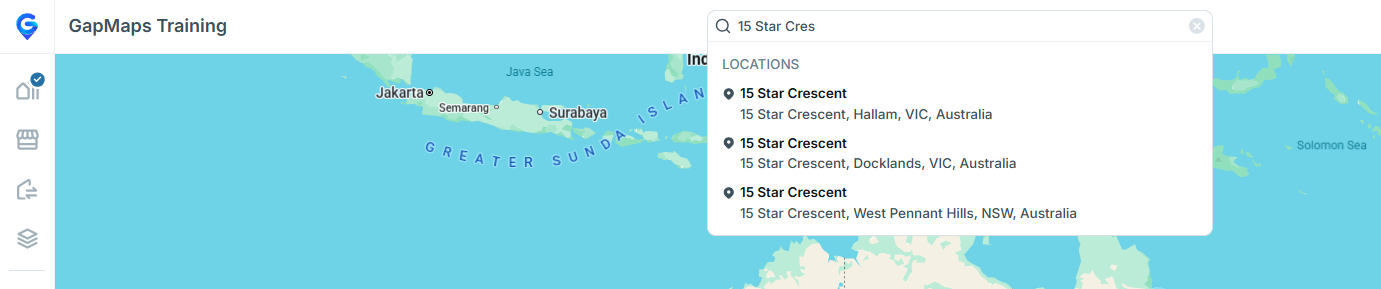
- Enter a street address, city, town, store name, or coordinates (formatted as: latitude, longitude) into the search bar.
- Click the address once it appears.
** If you have access to more than one country, ensure you are in the relevant country before searching.
Pin Drops
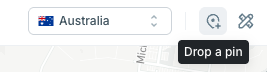
Adjust the map so the area you wish a pin to drop is in the middle of your screen.
- Click the ‘Add a new search location’ button at the top of the screen.
Saving Options
Once the pin appears, the panel on the right will open, allowing you to save the location.
Locations can be saved two ways:
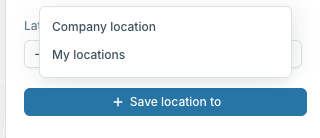
Save Location to – My locations
Saves under the category ‘My Locations’ and is visible on only the individual user’s account.
Save Location to – Company Locations
Saves under a ‘Company Locations’ category and (subject to the user profiles) will be visible to all users on the account.
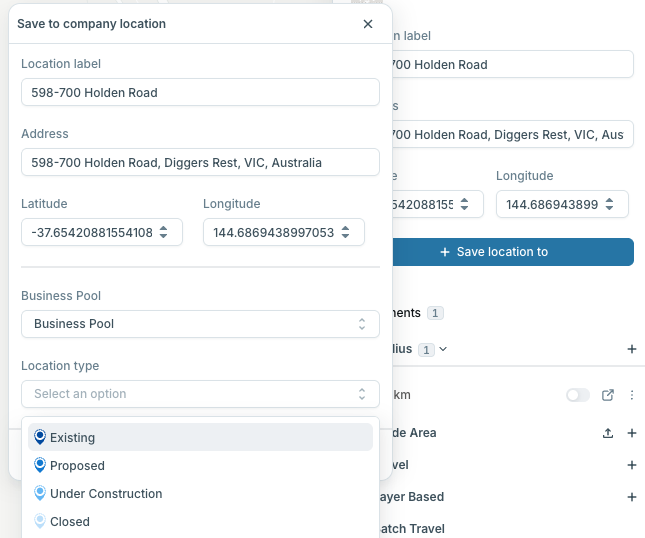
Saving to Company Locations
- Click ‘Save Location to’ and then select ‘Company Locations’
- Add a Title
- Select Business Pool
- Select a Location Type
- Click ‘Save Changes’
Editing or Deleting a Pin
To Edit:
- Click ‘Edit location’
- Make your required changes
- Click ‘Save changes’
To Delete:
Click the ‘Delete’ icon
Refresh your browser