⚠️ ADMIN ACCESS REQUIRED⚠️
If you do not have Admin access, please reach out to client services via the chat icon or at clientservices@gapmaps.com for assistance.
Creating a Batch Travel Report
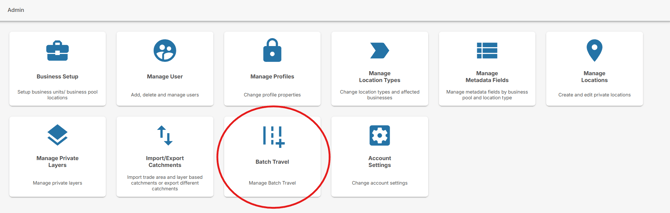
- Click on ‘Admin’
- Click on ‘Batch Travel’

|
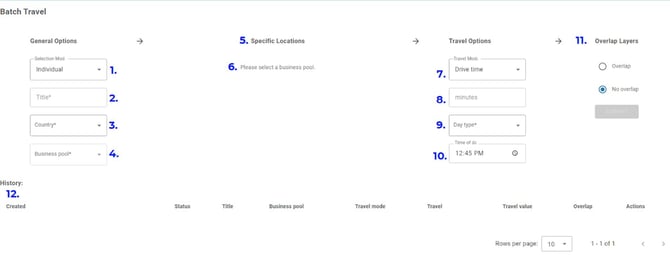
1. Individual allows you to select specific locations within the Business Pool Group will include all locations within the Business Pool |
|
2. The name of your report |
|
3. Select the country |
|
4. Select the relevant Business Pool |
|
5. If ‘Individual’ was selected in Step 1, type names to select the locations to be included |
|
6. Displays which locations have been included in the report |
|
7. Select the travel mode |
|
8. Enter the value for the travel time |
|
9. Enter day of week for the travel time |
|
10. Enter time of day for the travel time |
|
11. Select ‘Overlapping’ or ‘Non Overlapping’ to determine the boundaries of the travel times |
|
12. Access historical Batch Travel reports |
You will receive an email once the report is ready to view.
- Click on ‘Reports’
- Expand the ‘Batch Travel’ Section
- Select the report you wish to visualise
OR
- Select a Pin that was included in a Batch Travel Report
- Select ‘Batch Travel’
- Click ‘Show’ on the catchment you wish to visualise
You can see the report criteria and export a .geojson by clicking the three dots.
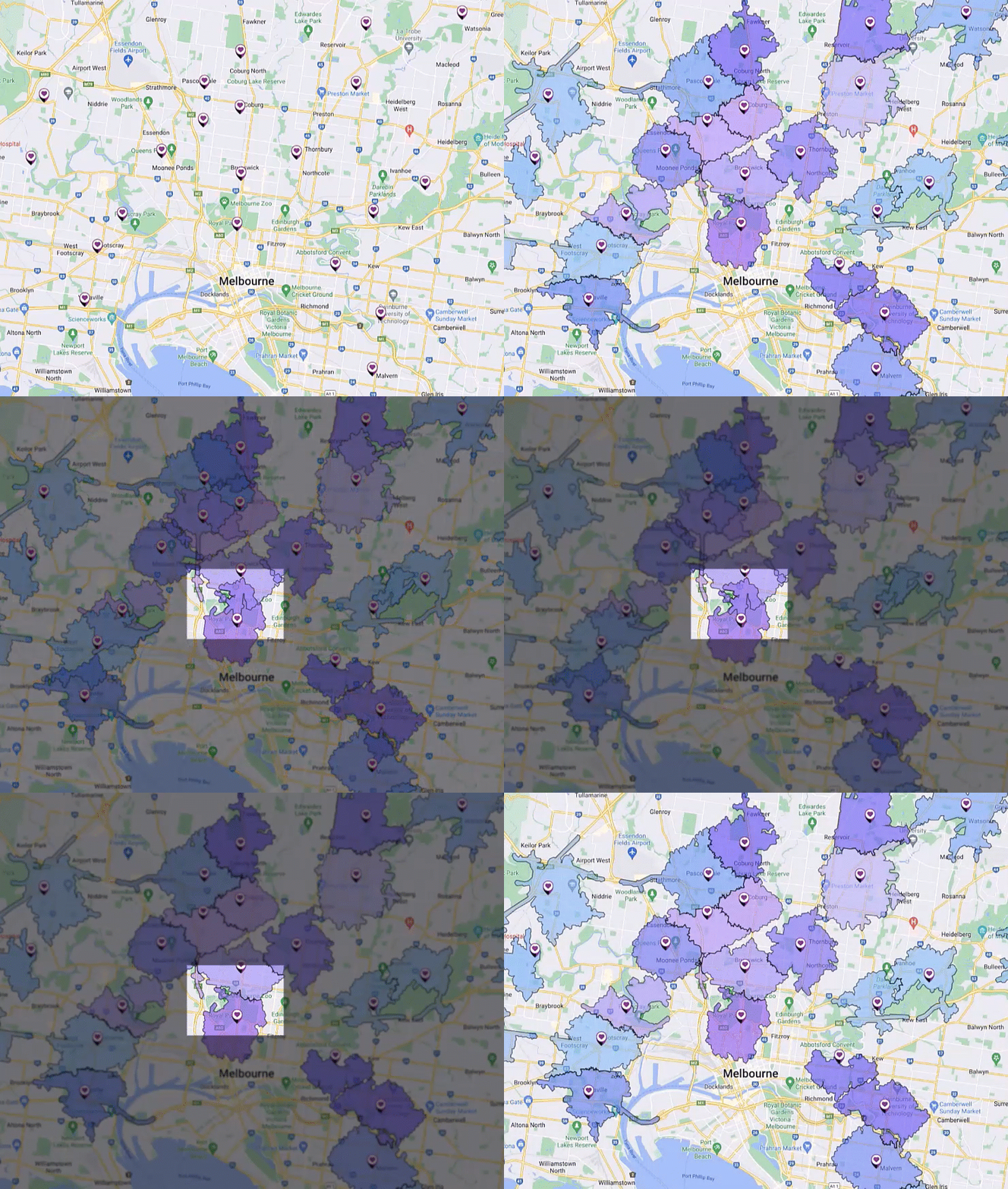
What’s the Difference Between Overlapping and Non Overlapping Travel?
Non Overlapping looks at the overlap between multiple drive times and factors in a line of convenience. The line of convenience shows the true population in each catchment by identifying where similar travel time exists across multiple sites, where a client could choose any site as they are equally convenient to travel to.
Overlapping helps determine where multiple locations exist within a defined travel type across your network. You can identify areas of potential sales impact and visualise the overlap