
⚠️ ADMIN ACCESS REQUIRED⚠️
If you do not have Admin access, please reach out to client services via the chat icon or at clientservices@gapmaps.com for assistance.
Accessing Manage Locations
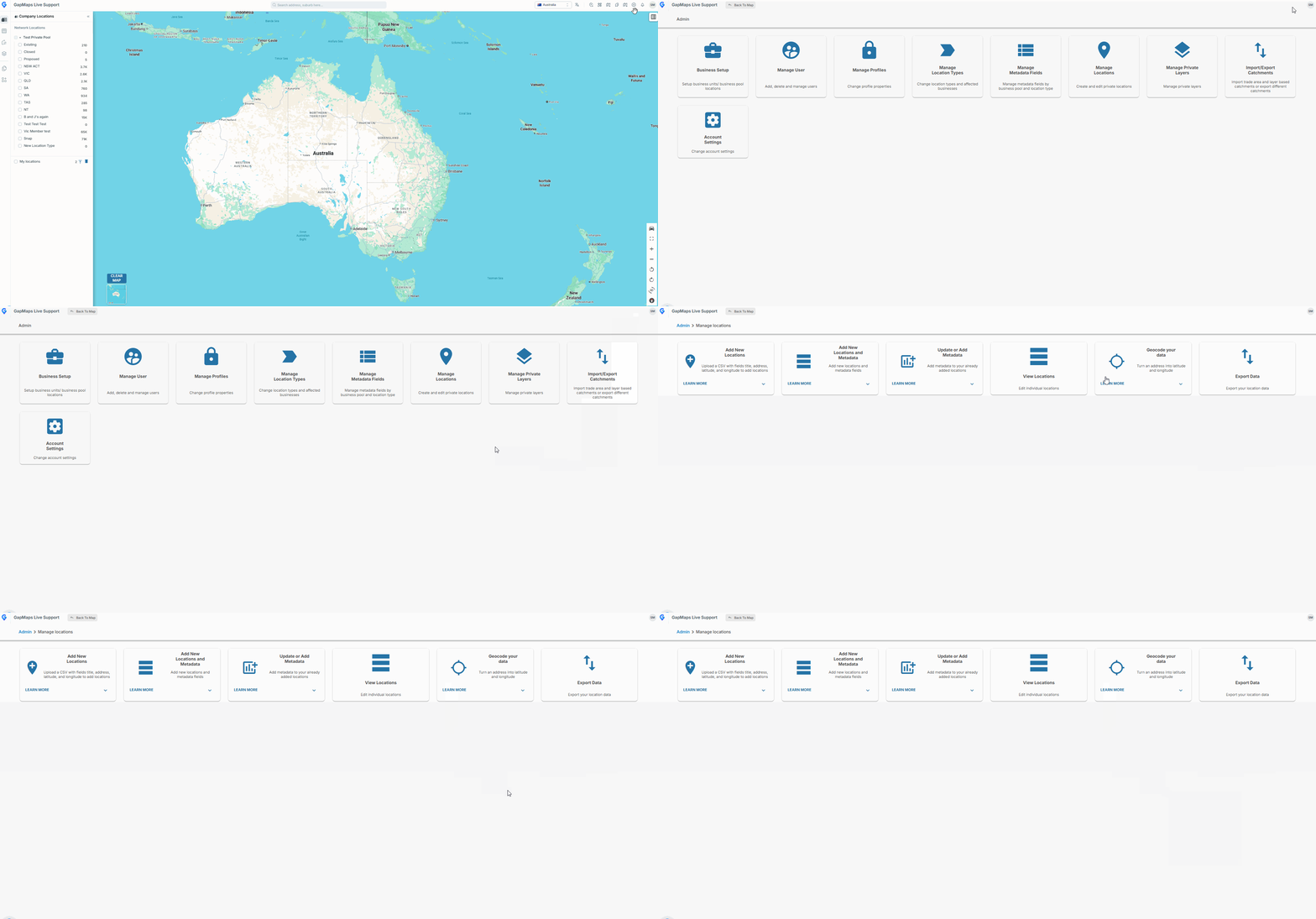
- Click on the cog in the top right corner of GapMaps.
- Select "Admin".
- Click on "Manage Locations".
Updating or Adding Metadata
- Export your locations. (See "Exporting Locations" for instructions)
- Add metadata to the relevant fields in the exported .csv file.
- Note: Create a separate .csv file for each business pool/location type you wish to update.
- Under "Update or Add Metadata", select the Business Pool, Location Type, and Country for the locations you wish to update.
- Upload your .csv file.
- Review the changes that have been uploaded.
- Click "Submit" to submit the changes.
- You will receive an email once your upload has been completed.
Note:
- For Yes/No fields: enter "1" in the .csv for "yes" and "0" for "no".
- For drop-down options: the option must already exist and your updated data must match exactly.