
⚠️ ADMIN ACCESS REQUIRED⚠️
If you do not have Admin access, please reach out to client services via the chat icon or at clientservices@gapmaps.com for assistance.
The Catchment Report can be customised to add/remove variables so that you only have the data that matters most in your report.
You can also have different versions of the Demographics Report available to different profiles on your account.
Standard Catchment Report

The Standard Demographics Report is the most commonly used. This report may be customised via Business Setup.
Customising the Standard Demographics Report
- Click on 'Admin' button from the GapMaps home page.
- Click on 'Business Setup' > 'Setup Demographics'
- Expand the 'Standard Demographics' section for the country you are working in
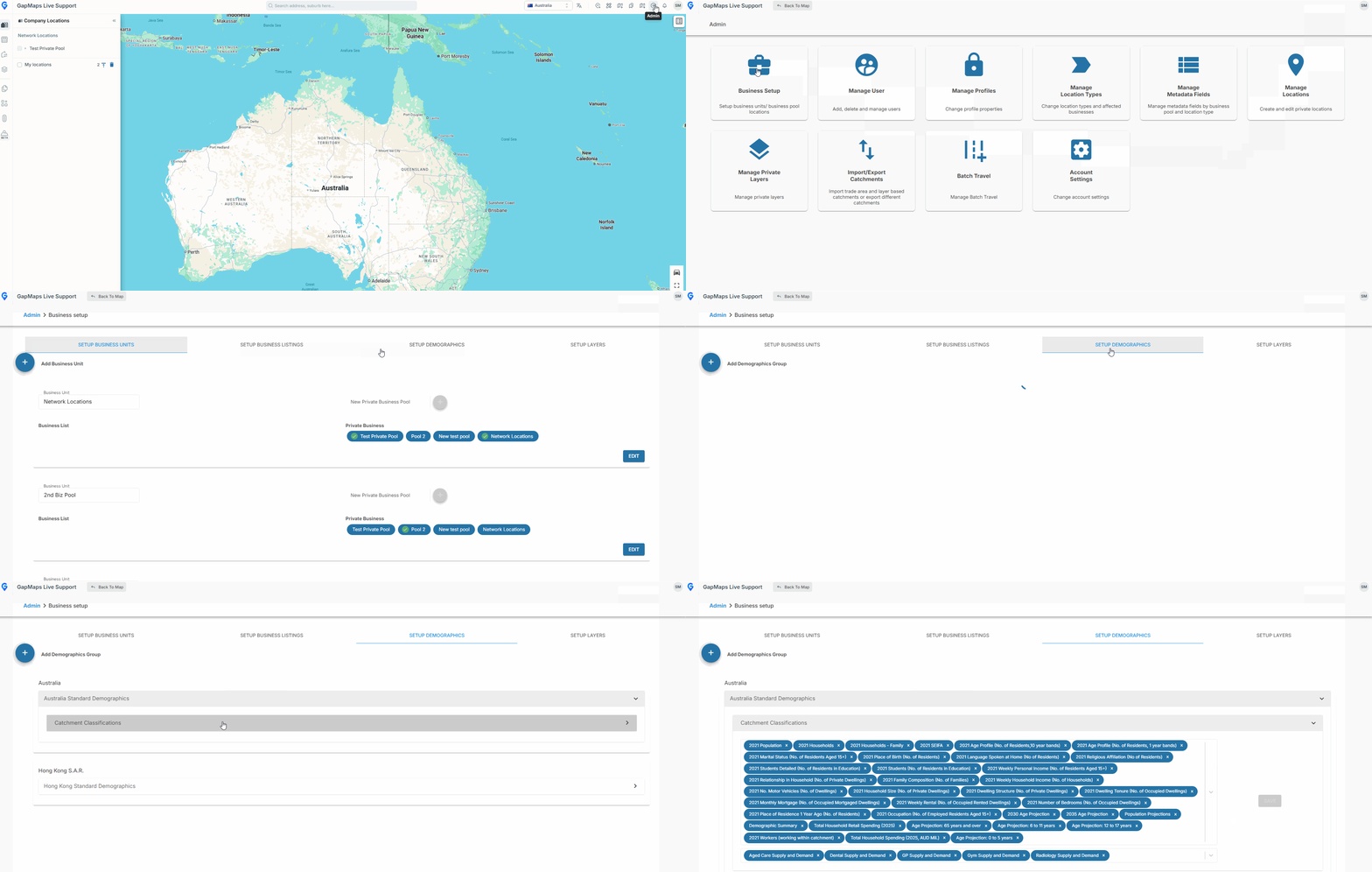
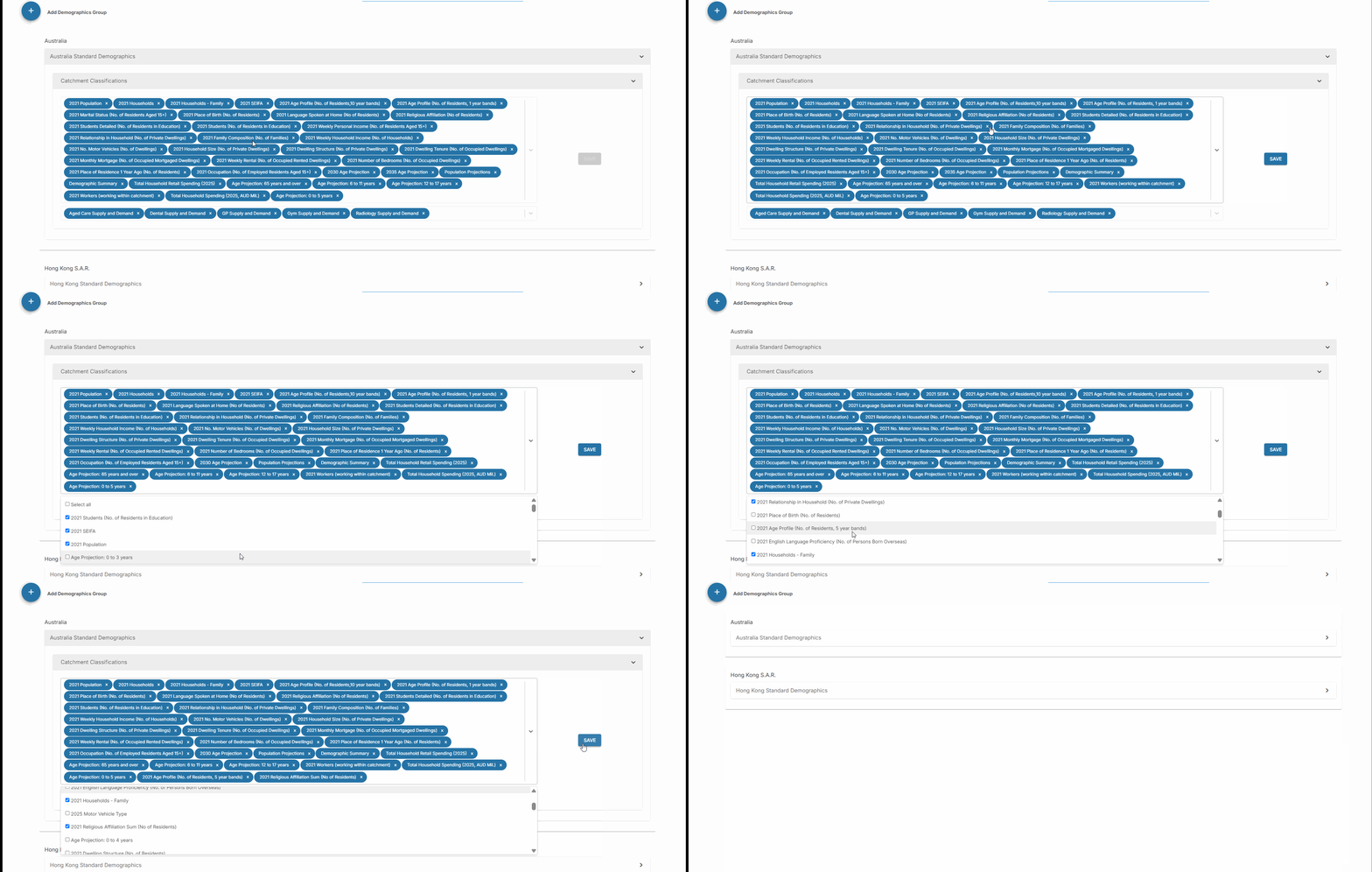
- To remove variables, click the 'x'
- To add variables, open the drop down variables section and tick the variables you wish to add
- Click 'Save'
Profile Specific Demographics Reports
You can create different demographics reports to be accessed by different profiles on each account. There are some things to note on this before you begin setup:
- All profiles must have the 'Standard Demographics' report
- If a variable is disabled in the Standard Demographics Report, no other demographics report will be able to view the variable
- A profile may only have more than one demographics report assigned to it
Setting up new Demographics Reports
Before you begin, ensure all variables that need to be visible to users on your account are switched on in the Standard Demographics Report.
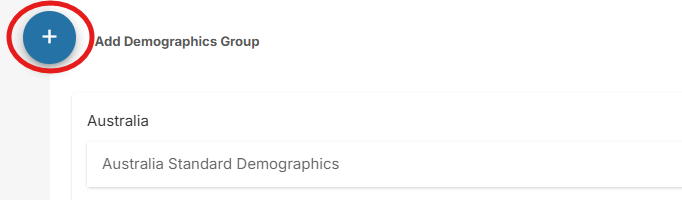
- Click the '+' next to Add a Demographics Group
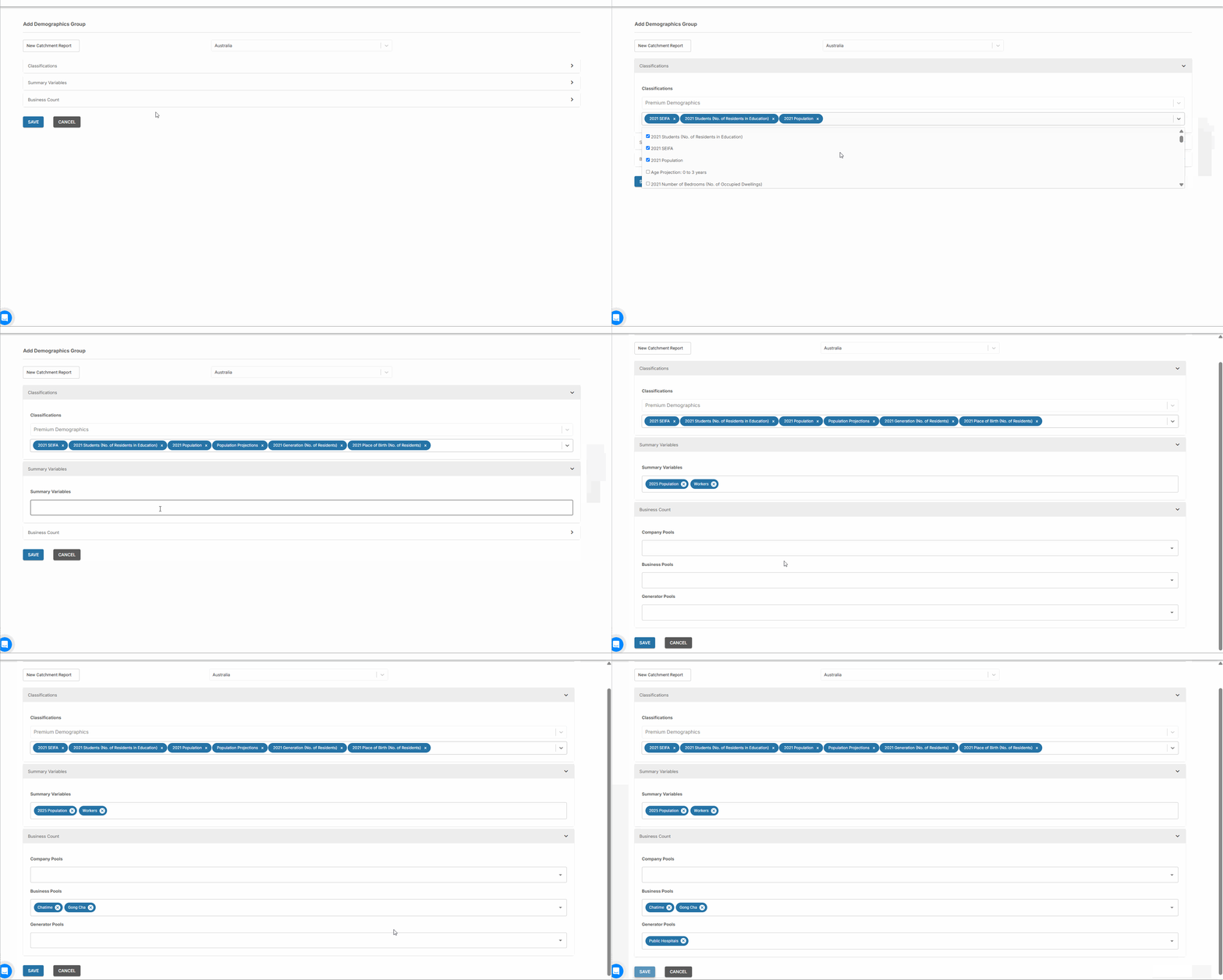
- Enter the desired name and Country for the Demographics Report
- Click to add a tick to the variables, Summary Variables (to appear at the top of the report), Business Counts (Company locations, Business Locations or Generators) you wish to include in the report
Assigning Demographics Reports to Profiles
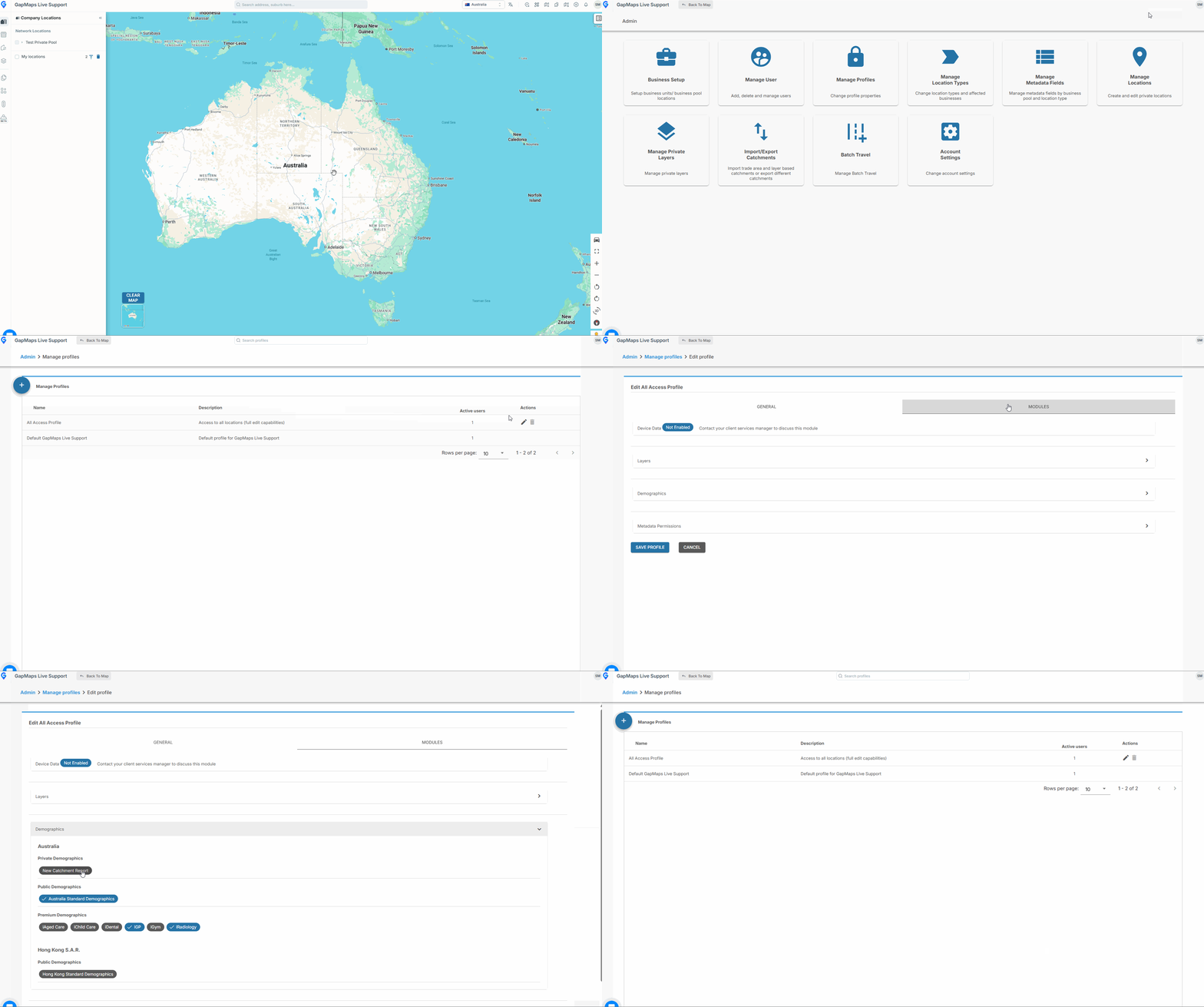
- Click on 'Admin' button from the GapMaps home page
- Click on 'Manage Profiles'
- Click the edit symbol on the profile you wish to add the Catchment Report to
- Click on 'Modules'
- Expand 'Demographics'
- Tick the Demographics Report you wish to add to the profile.
- Click 'Save Profile' at the bottom of the page