
⚠️ ADMIN ACCESS REQUIRED⚠️
If you do not have Admin access, please reach out to client services via the chat icon or at clientservices@gapmaps.com for assistance.
Accessing the Geocoder
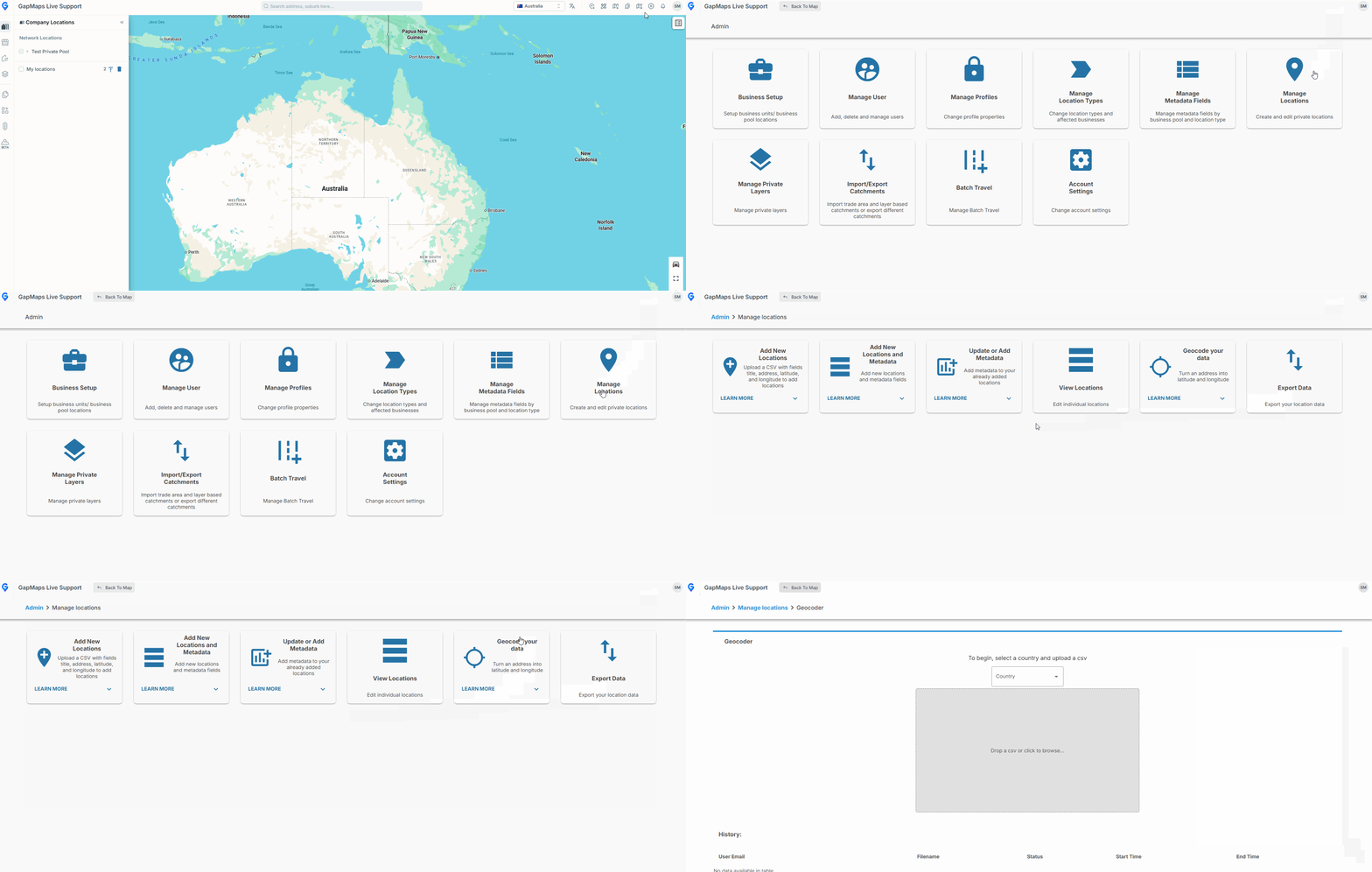
- Click on 'Admin'
- Click on 'Manage Locations'
- Click on 'Geocode your data'
Preparing your Import Sheet
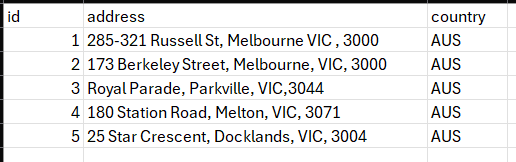
Obtain a copy of the import sheet sample file by downloading it here: Geocoder Import Sheet
The import sheet must contain an id, address and country for each address you wish to be geocoded:
-
id: Should be a numeric value, and is mandatory. This can assist if the geocoder returns irregular results or missing items so that the data can be matched back to the original source based on the ID. We recommend beginning row 2 as '1' and going up for each row by 1
- eg. 1, 2, 3, 4
- Address: Must include street number, street name, street type, suburb/city and postcode
- eg. 15 Star Crescent, Docklands VIC 3006
- Country: The 3 letter country code that the addresses are located in (all caps)
- eg: 'AUS'
Importing your Import Sheet
NOTE: You can only geocode a set of addresses that are in the same country
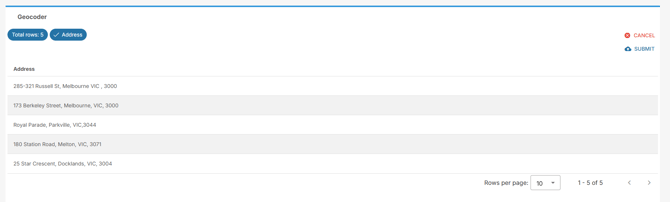
- Upload your import sheet
- Select 'Submit'
- Once the geocoder has finished, you will receive an email with the geocoded addresses
Understanding the Geocoded Results
The accuracy field in the returned file gives information on the accuracy (Response Type) of the latitude/longitude point returned
- ‘Point’ means the record can reasonably be represented by a single latitude/longitude point.
- ‘Centroid’ results are records that represent a larger area, such as a city or country. In this case, the geocoder may not have been able to find a point using the address provided.