
Legends
Legends provide a quick summary of what you're seeing on GapMaps.
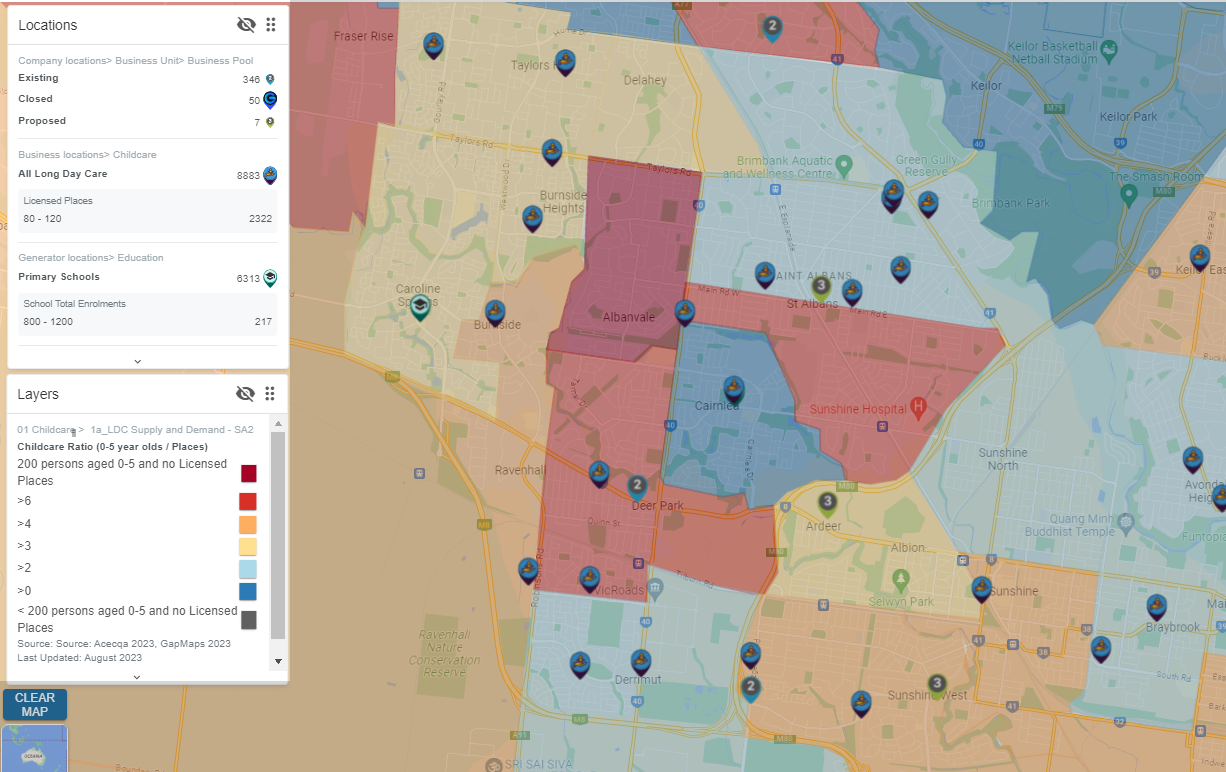 Layers categorise visible components by:
Layers categorise visible components by:
- Company Location/Location Type
- Business Locations
- Generators
- Filters
- Styled Pins
- Layers
- Traffic*
Legends explain each pin's meaning and count. You can toggle Legends on/off and move them around the screen as needed.
*Must have access to GapMaps Traffic or Premium Traffic
Types of Legends
There are three different types of legends you will work with in GapMaps
|
Legend Type |
Displays |
|
Locations |
- Company Locations - Business Locations - Generators - Metadata Filtering Results - Styled Pins |
|
Layers |
- All Layers including Private Layers that have been visualised |
|
Traffic |
NOTE: Only applicable for clients that have signed up for GapMaps Traffic - Contact client services via clientservices@gapmaps.com for more information |
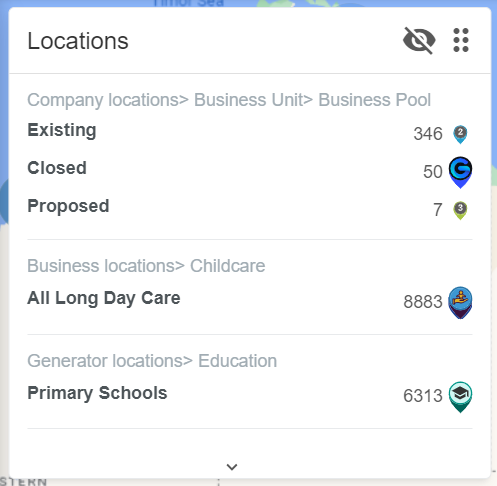
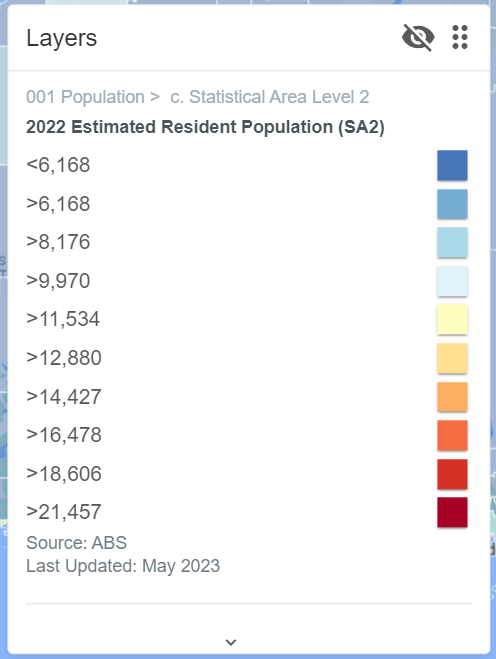
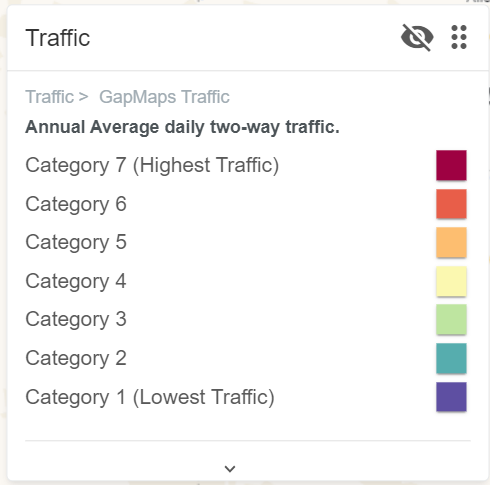
Using Legends
Legends will automatically be on when you log into GapMaps. You are able to move them around the screen and toggle them on/off as required. As you visualise Locations, Layers or Traffic the legend will reflect your changes.
Legend Controls
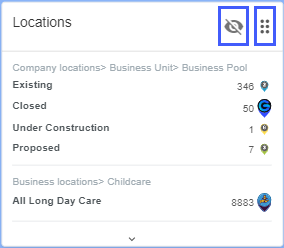
- Move a legend by clicking the six dots in the top right corner of the legend and dragging it to your preferred location
- Hide a legend by clicking the eye in the top right corner of the legend
OR - Toggle Legends on/off using the control box in the top right corner of GapMaps
Resizing Legends
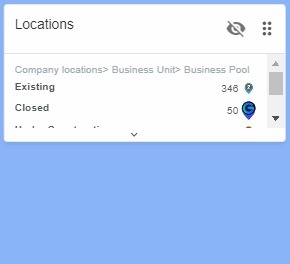
Depending what you have visualised on GapMaps, you may need to resize the legend to see all contents.
- Hover over the arrow at the bottom of the legend and pull down to expand
FAQs
Do Development Application Pins appear in the Legends?
No. You can view the definition of DA Pins in the DA panel on the left side of GapMaps.