
⚠️ NOTE:
To save any styled pins, please use the Saved Views feature.
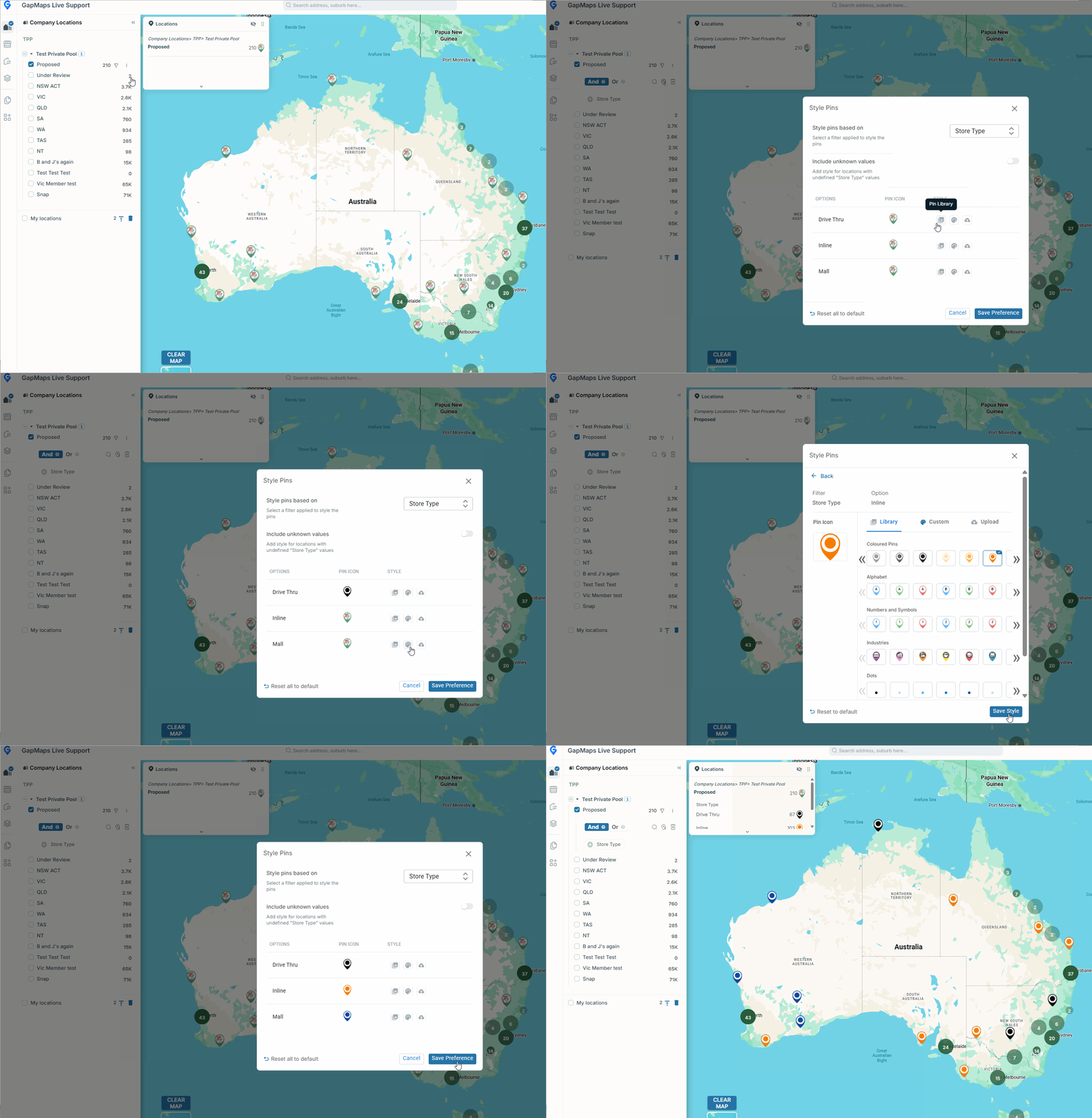
Before you get started:
If you wish to use this feature on your own locations, you will need to have metadata fields/confidential details set up. See the below guides for more information:
- Setting up Metadata Fields (Admin access required)
- Confidential Details
What is Pin Styling?
Pin Styling allows you to adjust the styling of a pin (company location/business listing/generator) according to it's associated metadata fields.
For example, in a Fast Food network, you may wish to see all of your existing stores on the map at once, but still be able to visually determine the different format types of each site.
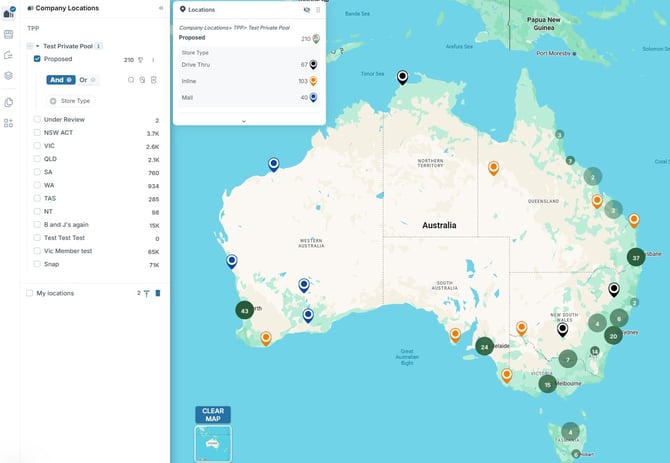
In the image below, we have visualised all existing sites in a Fast Food network, and styled the pins by their 'Format Type' metadata field to represent which of their existing locations are Freestanding, Shopping Strip or Food Court types.
Note that styled pins will be listed in the locations legend.
How to Style Pins
On any group of locations that has metadata (site info or confidential details):
- Click on Filter
- Click on Style Pins
Styling a Pin
Pin can be styled using default pins from our library, you can customise pins or upload your own.
As you can style a pin based on it's metadata field, there will be different ways to style determined by whether you are working with a numeric field, a drop down field or a yes/no field.
Styling Metadata Fields
- Select which metadata field you wish to style the pins by
- Assign each variable a pin by selecting a pin from the library, customising a pin or uploading your own. FOR NUMERIC:
- Select whether you will use predetermined steps (how many groups you want the numerical range divided by) or create your own custom ranges by ticking the box
- Enter the custom ranges if using
- Style the pins by selecting a pin from the library, customising a pin or uploading your own
- Click "Save Preference"