Printing and Screenshots
How do I print something from GapMaps?
Taking Screenshots
Snipping Tool
Snipping Tool is a Microsoft Windows application included in Windows Vista OS and later.
To open Snipping Tool:
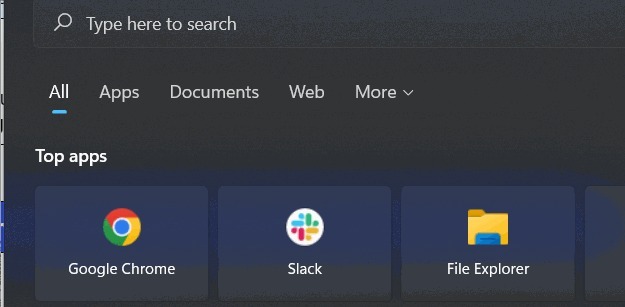
Click the Windows Key on your taskbar and search your computer for ‘Snipping Tool’.
Taking a Screenshot
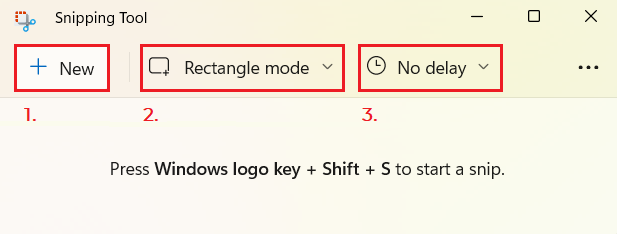
1. New
Take a new screenshot
2. Mode
Select which type of screenshot to take:
-
Rectangle Mode
-
Window Mode
-
Full-screen Mode
-
Free-form Mode
3. Delay
Select a delay time
Windows + Shift + S
Take a screenshot without the need to open Snipping Tool. Copies the screenshot directly to your clipboard.
This is useful if you need to paste the snip directly into a presentation or email without the need to edit.
Also allows you to avoid using the ‘Delay’ function.
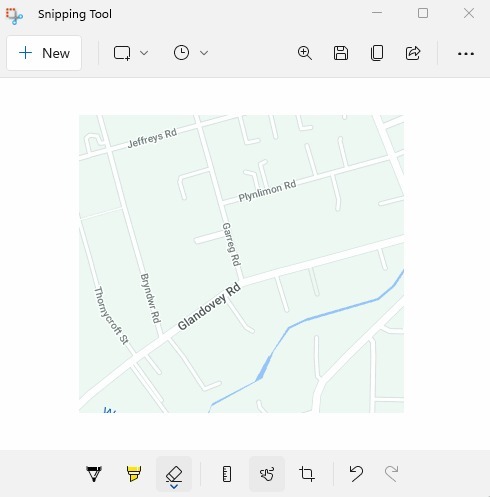
Editing, Saving and Printing

- Draw 2. Highlighter 3. Eraser 4. Ruler/Protractor 5. Touch Writing Toggles your touch screen to allow you to draw on the screenshot.
- Crop 7. Undo and Redo 8. Zoom 9. Save 10. Copy 11. Share 12. More - Open Files Print