
Saved views allows you to save map configurations so that you and your colleagues can quickly and easily access them at any time.
Saving a View
What can be saved?
|
Company Locations |
|
Business Locations |
|
Generators |
|
Network-Wide Catchments (toggled on via Tools) |
|
Network-Wide Labels (toggled on via Tools) |
|
Layers |
|
Pin Styling |
|
Zoom Levels |
|
Pacificon (NZ) |
|
Commercial Real Estate (AU) |
Coming Soon to Saved Views
The below features are currently in the works to be able to be included in Saved Views:
|
Individual Catchments (toggled on via the Pin Panel) | Coming Soon |
|
Base Maps | Coming Soon |
|
Search Locations |
Saving a View
NOTE
Saved Views will save your map at the location you are viewing with the same zoom level. Ensure your map is in the appropriate place for your view before you save it.
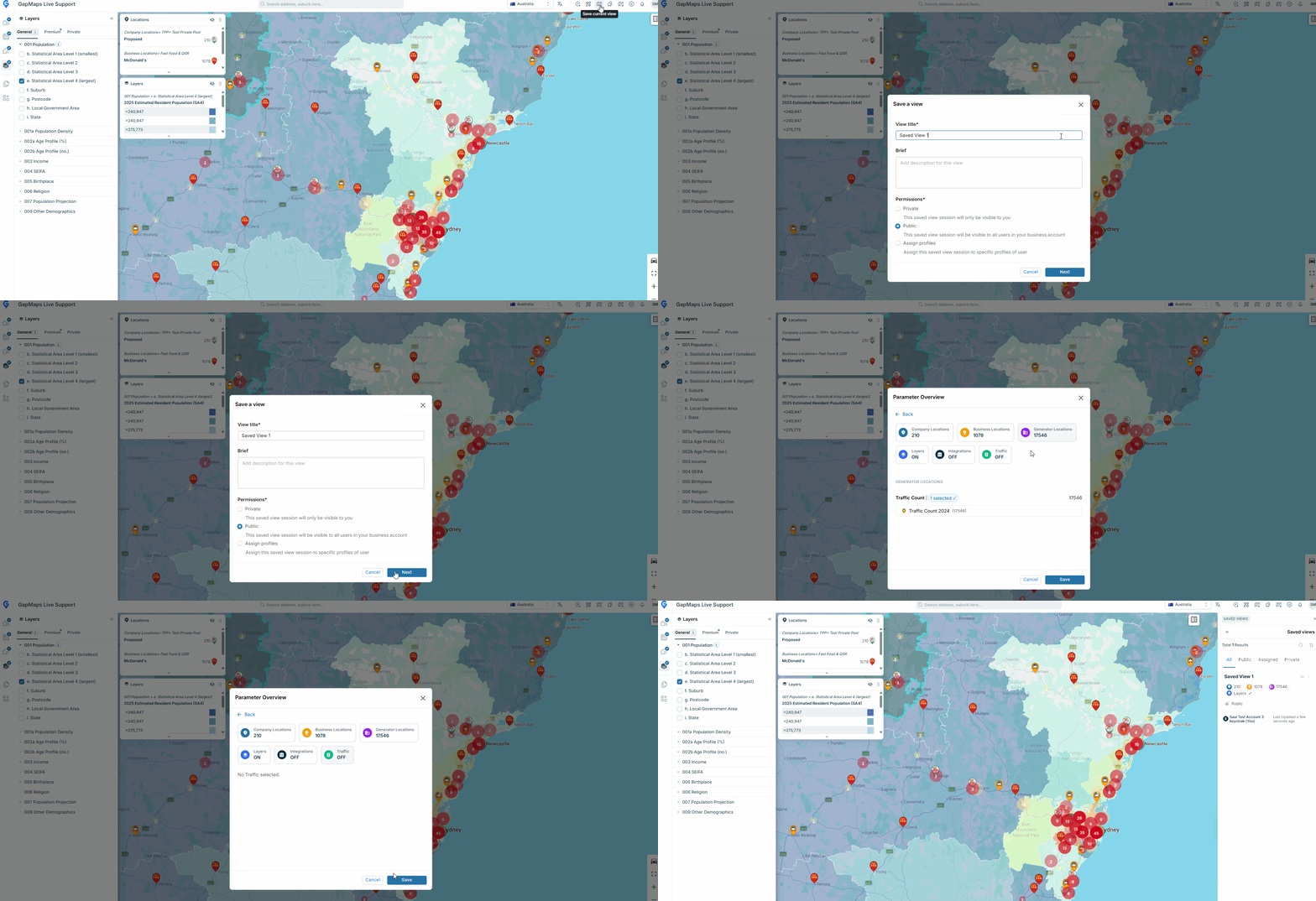
- Visualise anything from the 'Can be Saved' column in the table above
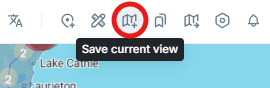
- Click 'Save Current View' in the top right of the toolbar
- Enter a title, description and select permissions
- Public will be visible to users with the same user profile type as you
- If you are an Administrator, Public will go to all users
- Private will be visible only to you
- Assign Profiles is available only to Account Administrators
- Public will be visible to users with the same user profile type as you
- Click through the parameters to double check what will be included in the view
- Click 'Save'
- The view will be available to all who have permission to access it via the View Panel