
⚠️ ADMIN ACCESS REQUIRED⚠️
If you do not have Admin access, please reach out to client services via the chat icon or at clientservices@gapmaps.com for assistance.
Before you start
You will need Metadata Fields set up to be able to use the Metadata Grouping feature.
(Manage Metadata fields article link)
Setting up Metadata Grouping
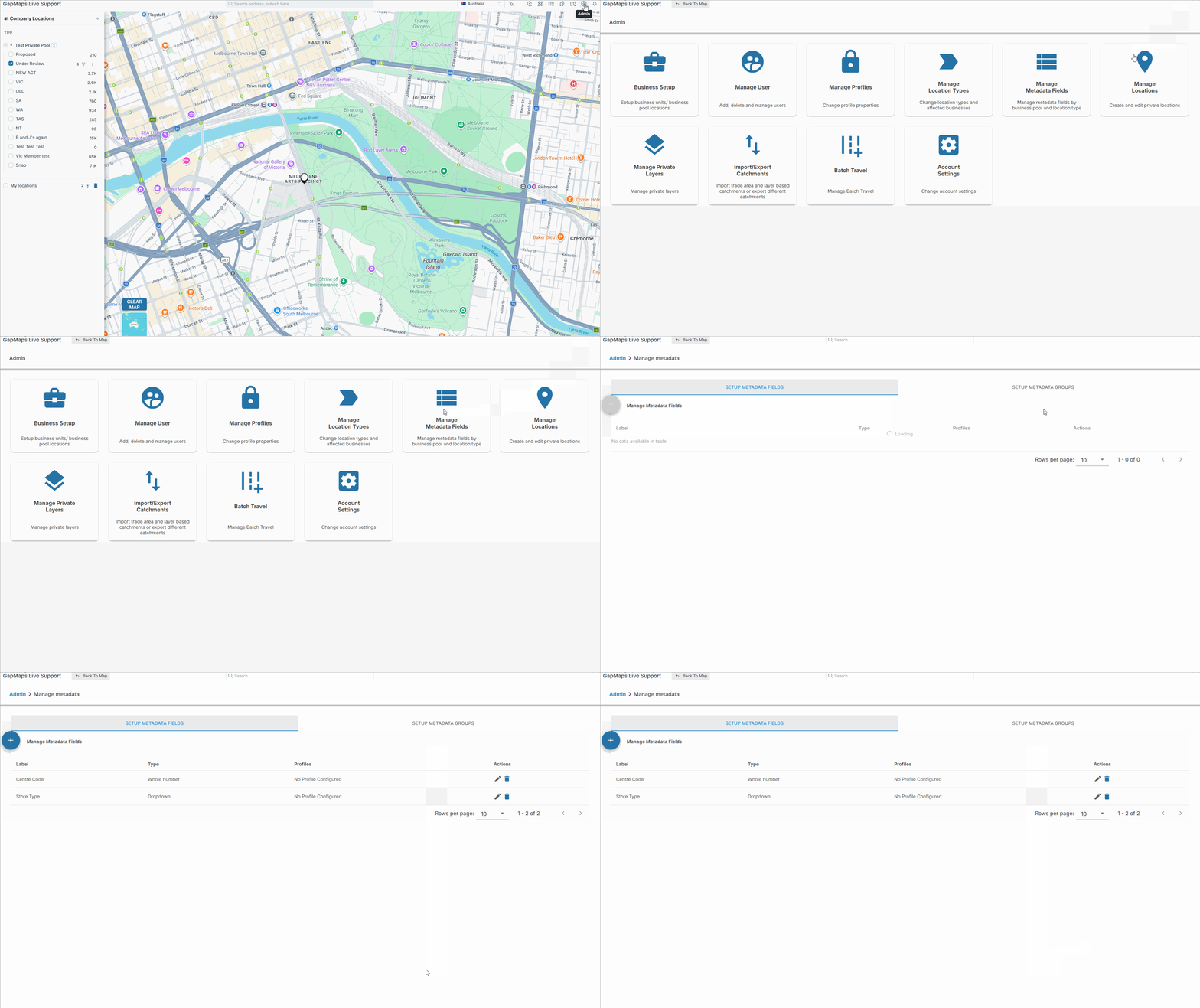
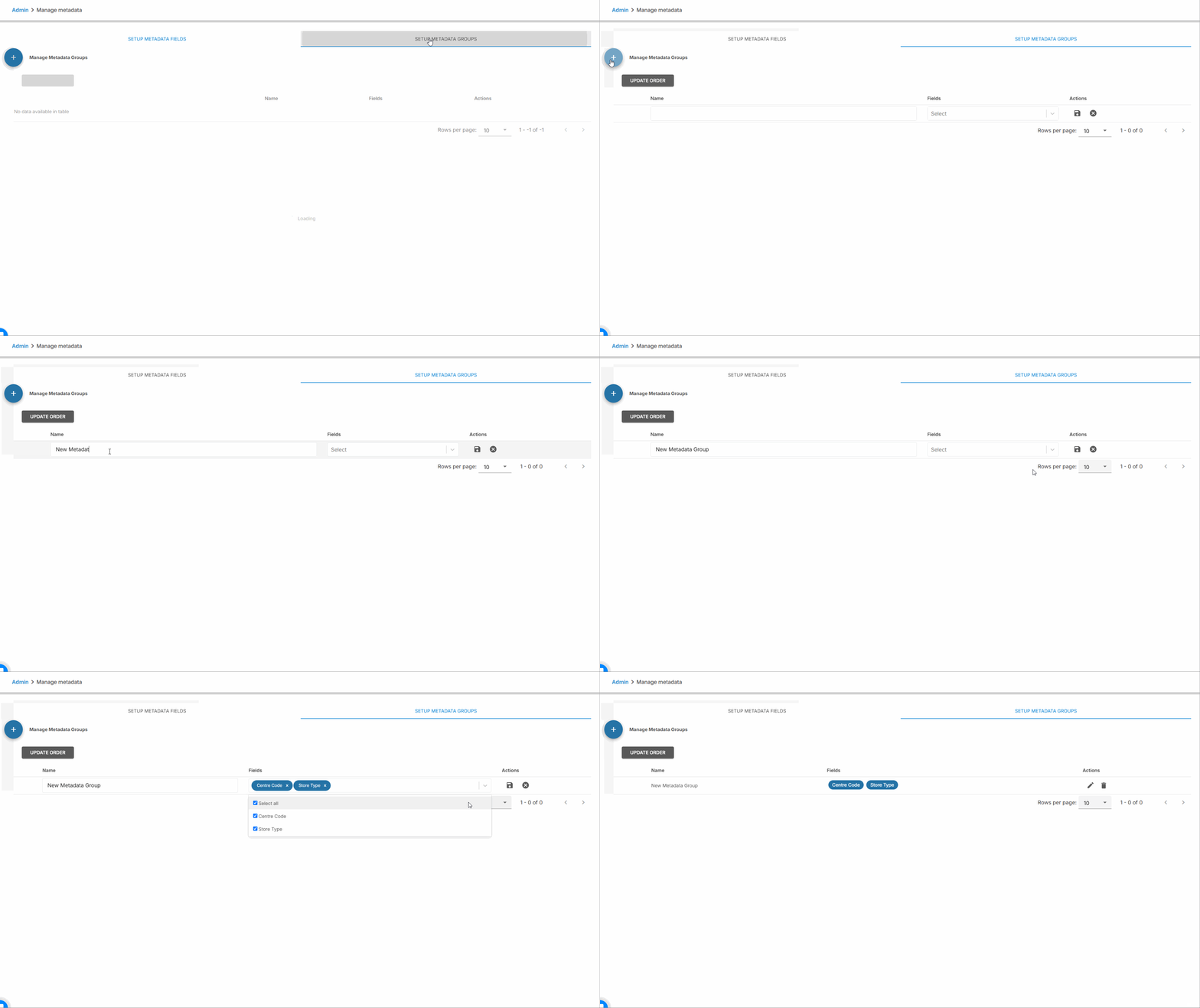
- Access Admin by clicking the cog in the top right corner of GapMaps, then click 'Manage Metadata Fields'
Reordering Metadata Groups
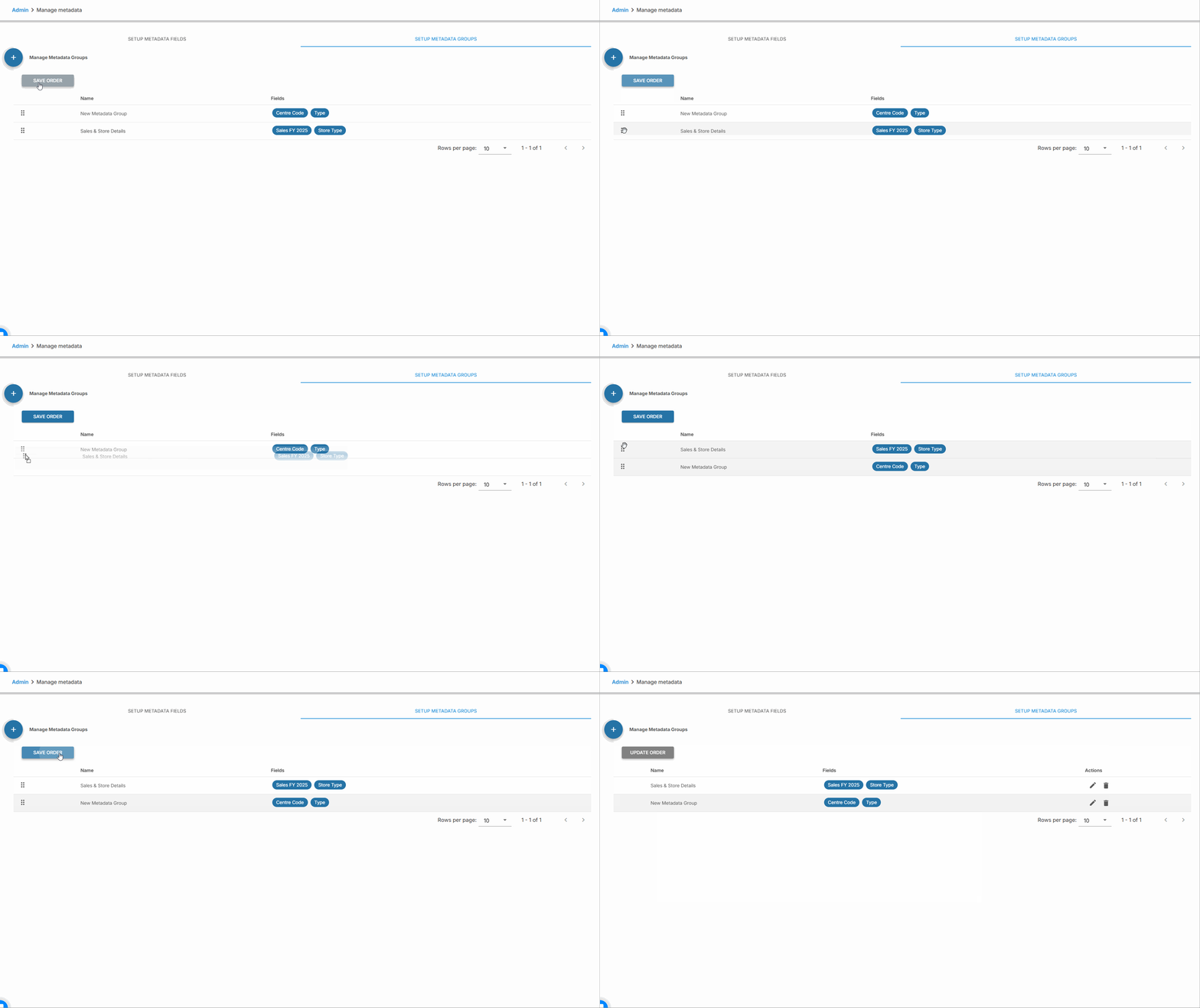
- Click 'Update Order' then click and drag the six dots your groups to your preferred order of display
Viewing Metadata Groups
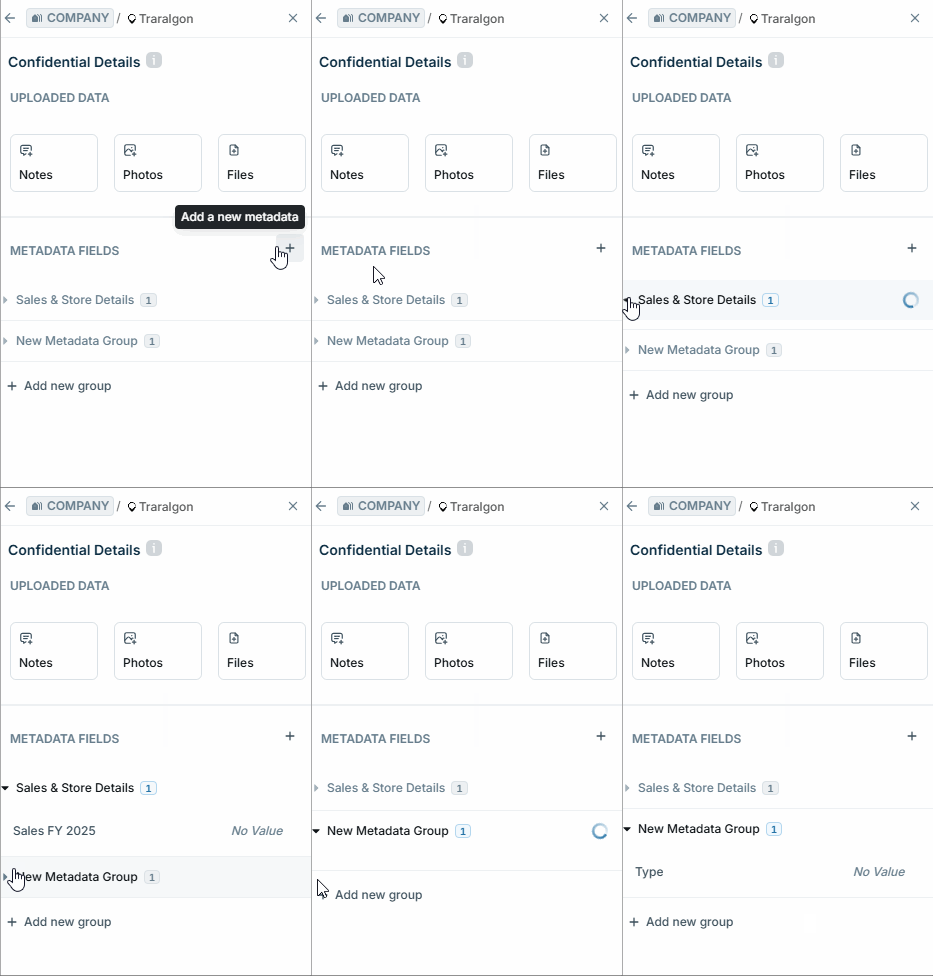
You will now be able to see the Metadata Groups created by clicking a pin and selecting "View" next to "Attached Details"
Things to Note

- You cannot have a metadata field in more than one group. Selecting a field that is already in a field to add to another group will move it to the new group
- If you delete a metadata group, you cannot create a metadata group with the same name. If you have done this by mistake, please reach out to client services for assistance