⚠️ ADMIN ACCESS REQUIRED⚠️
If you do not have Admin access, please reach out to client services via the chat icon or at clientservices@gapmaps.com for assistance.
Before you get started
Make sure you've read the Company Locations Breakdown guide
What do I set up in this section?
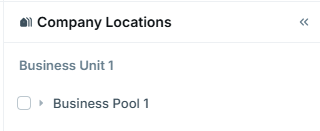
In 'Setup Business Units', you can control what is displayed in the Company Locations Section.

|
Company Locations |
The module in GapMaps that is used to manage your entire network |
|
Business Unit |
Typically the name of your company or organisation. Serves as a header or parent category for the business pools |
|
Business Pool |
Typically your trading name or brand. A group of locations or facilities that are managed together under a common organizational structure |
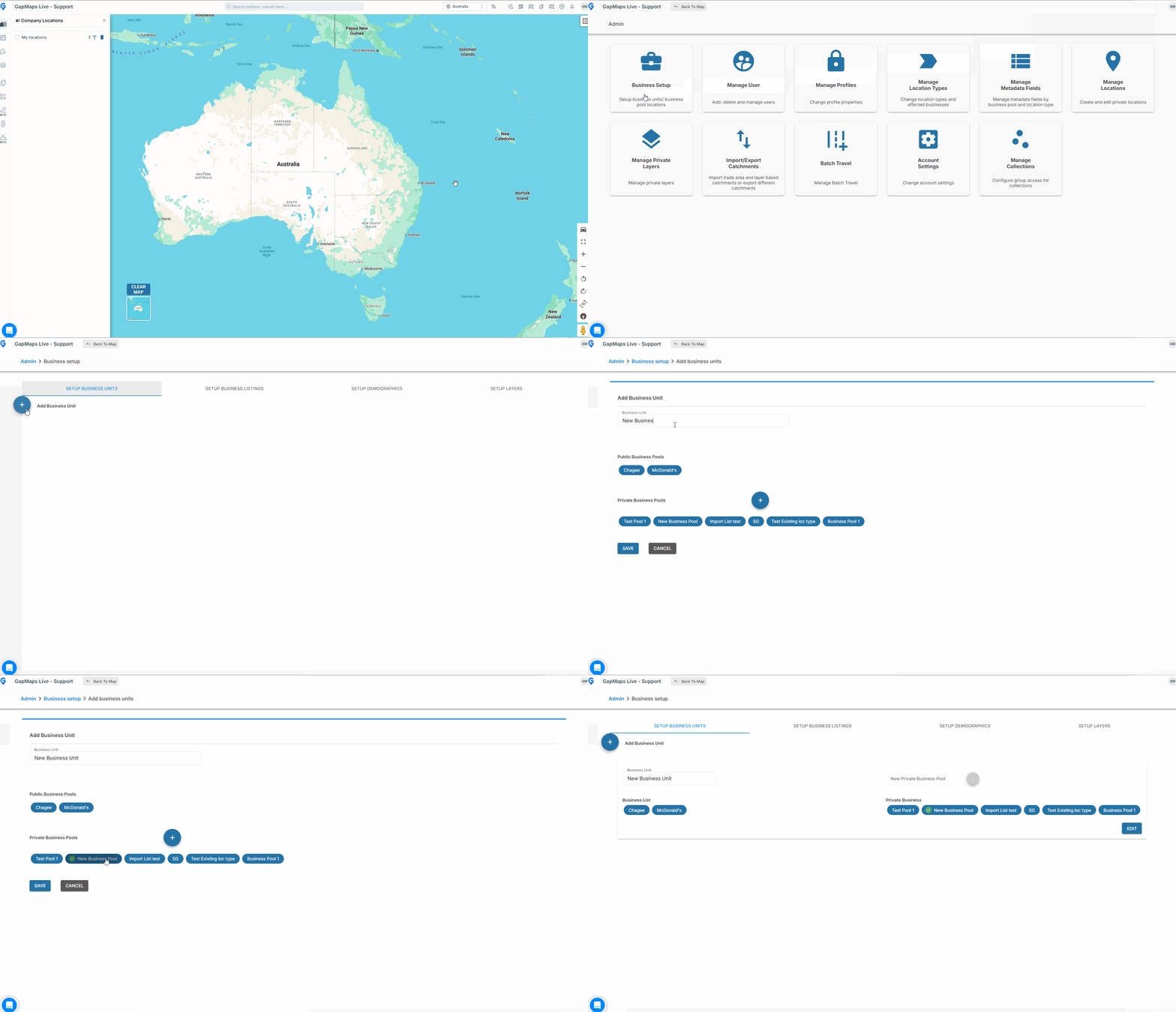
Accessing Setup Business Units
- Click on 'Admin' button
- Click on 'Business Setup' > 'Setup Business Units'
- Enter a name for the Business Unit, click on any business pools you wish to add (or click the + to create a new business pool) to the business unit to tick them and click 'SAVE'.
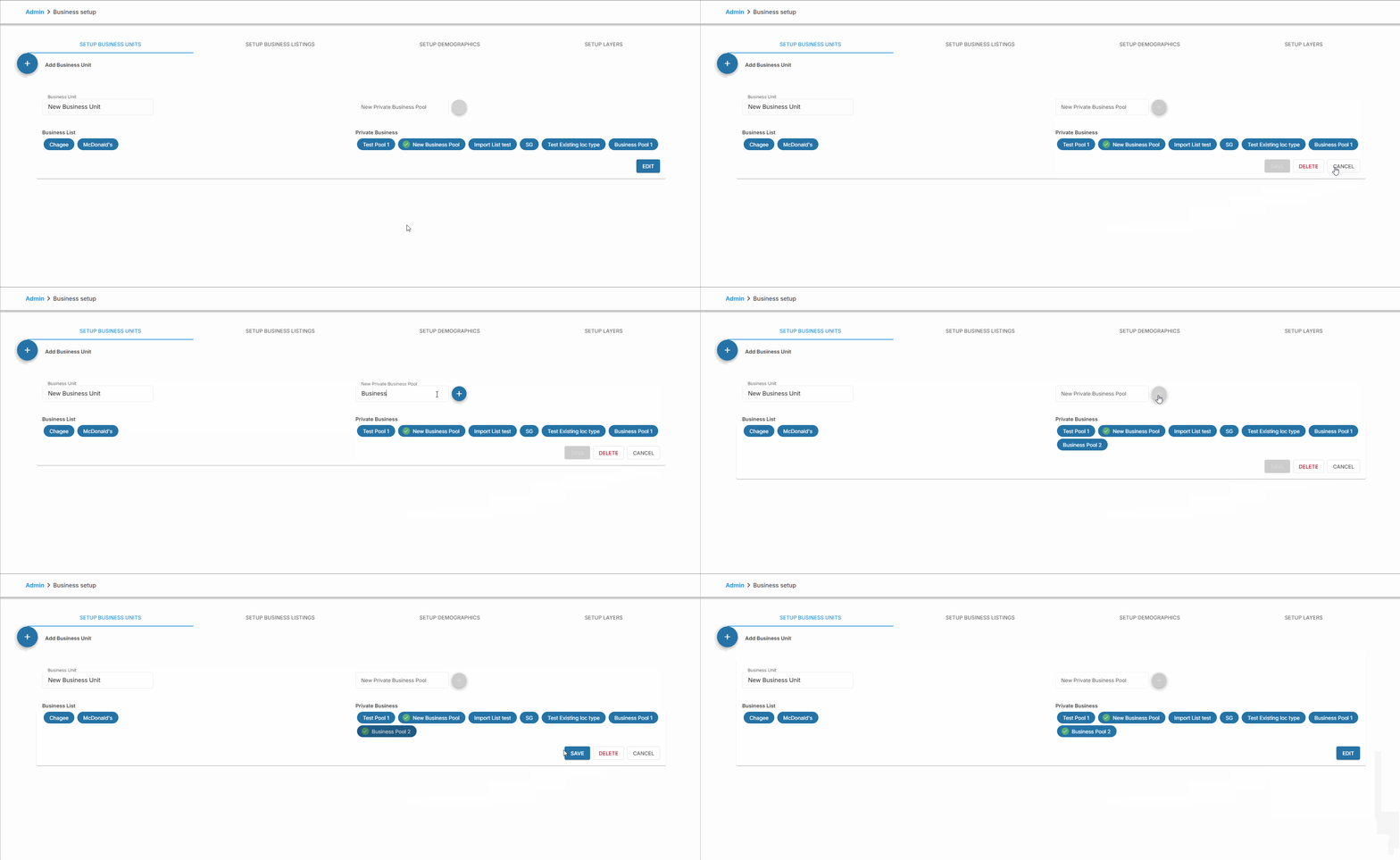
Adding a New Business Pool
- Click 'Edit' in the bottom right corner, enter a name for the new business pool then click the '+' to add the business pool.
- Activate the business pool by clicking on it so a green tick appears then click save.
Editing and Deleting Business Units and Business Pools
⚠️ NOTE ⚠️
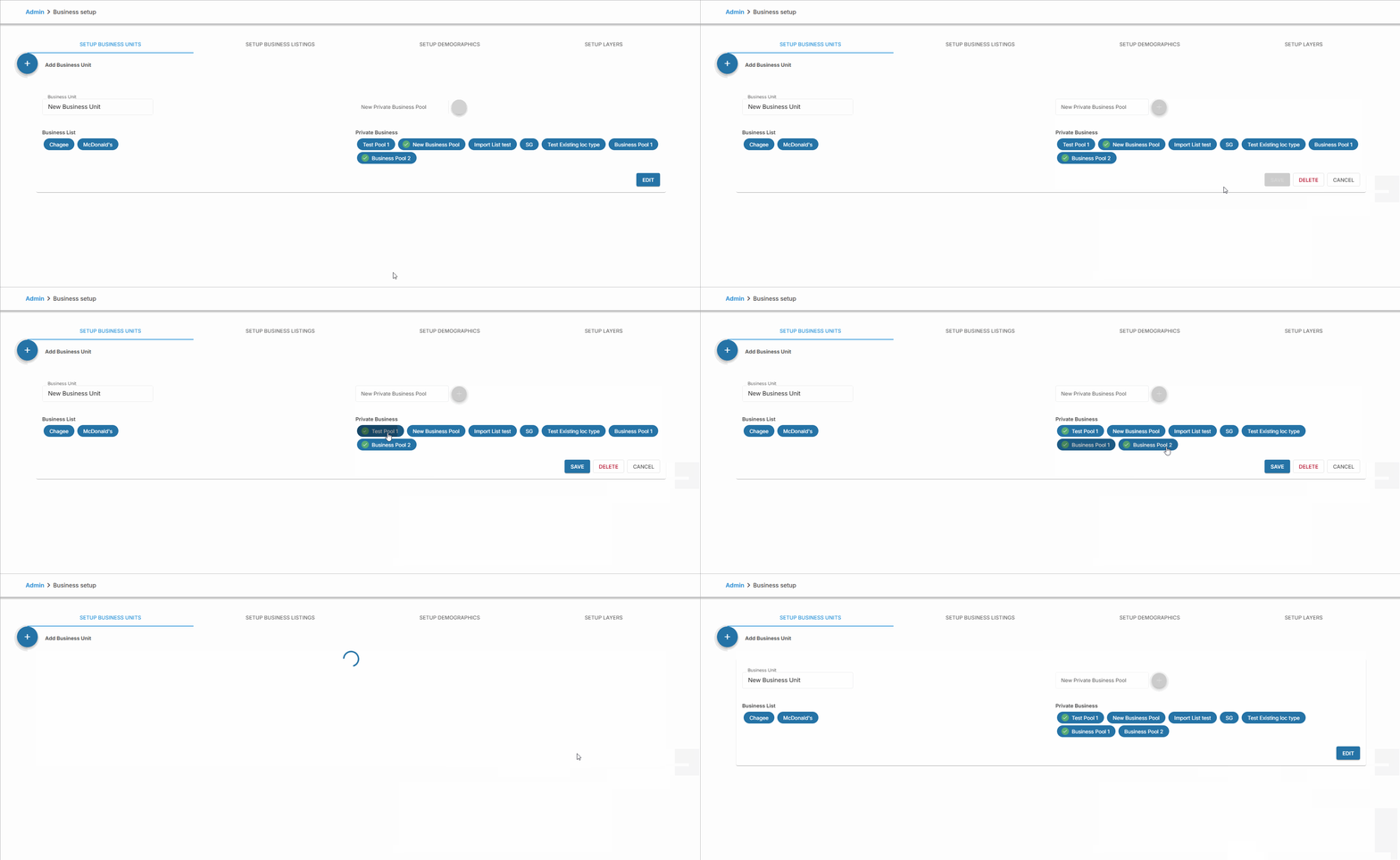
You cannot delete Business Pools, only business units. Be very sure you wish to delete a business unit before clicking the delete button.
Editing which Business Pools are visible on GapMaps
Any business pools that are ticked will be displayed in GapMaps via the corresponding Business Unit.
- Click 'Edit' then click individual business pools to tick/untick them
- Click 'Save' once you're happy with your changes